
How we built a fully automated system that detects errors, suggests and applies fixes, and creates pull requests with zero human intervention
👀 Vision
Imagine a world where production errors are automatically detected, analyzed, and fixed without any human intervention. Where AI agents work together to maintain your codebase 24/7, creating pull requests that are automatically reviewed and deployed. This isn’t science fiction, it’s our reality.
We’ve built a complete automated AI bug fixing pipeline that transforms how we handle production errors. From the moment an error occurs to the final deployment, the entire process is handled by AI agents working in harmony.
🏠 Architecture Overview
Our pipeline consists of several interconnected components that work together seamlessly:
- Datadog error monitoring
- AWS API Gateway webhook with Lambda integration
- Claude Code Fix Batch Job
- Custom slack bot
- Cursor slack bot
- Github PR with auto review using Claude Code
- Automated deployments
Let’s break down each component and see how they work together.
🐶 Step 1: Error Detection with Datadog
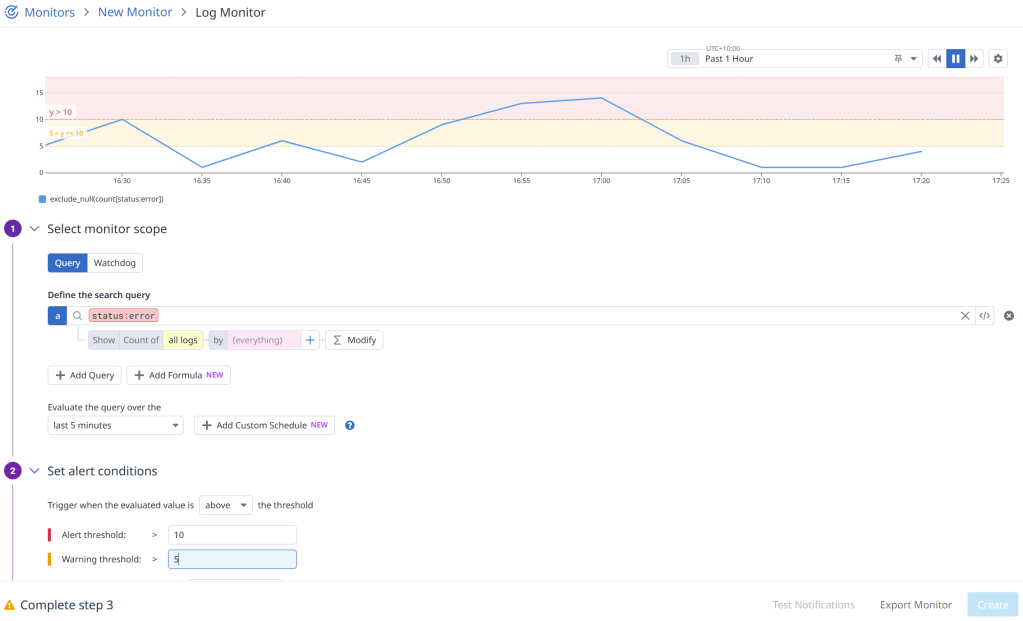
To begin, we have to configure Datadog monitors to watch for error patterns and trigger webhooks when thresholds are exceeded.
🎣 Webhook Integration
When an error threshold is exceeded, Datadog sends a webhook request to our API Gateway endpoint (using Lambda integration) with detailed error information.
Set up the webhook in Datadog by navigating to Integrations, search for “Webhook”, find “Webhooks by Datadog” and add a new webhook:

The URL here will be our API Gateway endpoint that will handle receiving and parsing the errors, then send them off to our batch job that will offer fix suggestions using Claude Code.
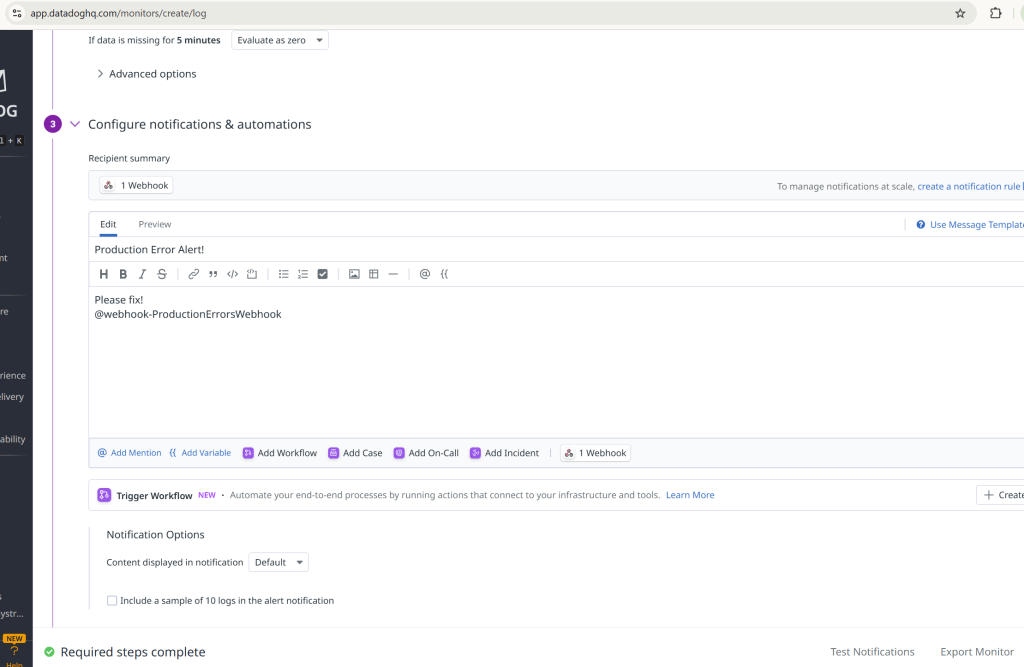
To use this webhook with our Datadog monitor, we simply add the name as a recipient to the template for the monitor we created earlier:
☁️ Step 2: Lambda Webhook Handler
Create a Lambda function to receive the webhook and process the error data. Attach the Lambda to an API Gateway so that it is accessible to Datadog:
public async Task<FunctionResponse> FunctionHandler(APIGatewayProxyRequest request, ILambdaContext context)
{
    var requestId = Guid.NewGuid().ToString("N")[..8];

    try
    {
        // Parse the webhook payload
        var webhookData = System.Text.Json.JsonSerializer.Deserialize<JsonElement>(request.Body);

        // Check if this alert should trigger a notification
        var shouldNotify = await ShouldNotifySlack(webhookData, context, requestId);

        if (shouldNotify)
        {
            // Send Slack notification and submit Claude Code Fix job
            await SendSlackNotification(webhookData, context, requestId);

            return new FunctionResponse
            {
                Success = true,
                Message = "Slack notification sent successfully"
            };
        }
    }
    catch (Exception ex)
    {
        throw;
    }
}
Error Data Retrieval from Datadog
The Lambda function doesn’t rely solely on the webhook payload. It actively fetches detailed error information from Datadog’s API to provide rich context for the AI analysis:
private async Task<List<ErrorLog>> FetchRecentErrorLogs(string query, int threshold, ILambdaContext context, string requestId)
{
    try
    {
        var datadogApiKey = Environment.GetEnvironmentVariable("DATADOG_API_KEY");
        var datadogAppKey = Environment.GetEnvironmentVariable("DATADOG_APP_KEY");
        // Calculate time range (last 1 hour)
        var endTime = DateTime.UtcNow;
        var startTime = endTime.AddHours(-1);
        // Use Datadog Logs API v2 to fetch detailed error logs
        var requestBody = new
        {
            filter = new
            {
                query = query,
                from = startTime.ToString("yyyy-MM-ddTHH:mm:ssZ"),
                to = endTime.ToString("yyyy-MM-ddTHH:mm:ssZ")
            },
            sort = "timestamp",
            page = new
            {
                limit = threshold
            }
        };
        var json = System.Text.Json.JsonSerializer.Serialize(requestBody);
        var content = new StringContent(json, Encoding.UTF8, "application/json");
        using var httpClient = new HttpClient();
        httpClient.DefaultRequestHeaders.Add("DD-API-KEY", datadogApiKey);
        httpClient.DefaultRequestHeaders.Add("DD-APPLICATION-KEY", datadogAppKey);
        var response = await httpClient.PostAsync("https://api.datadoghq.com/api/v2/logs/events/search", content);
        if (!response.IsSuccessStatusCode)
        {
            var errorContent = await response.Content.ReadAsStringAsync();
            context.Logger.LogError($"[{requestId}] Datadog API error: {response.StatusCode} - {errorContent}");
            return new List<ErrorLog>();
        }
        var responseContent = await response.Content.ReadAsStringAsync();
        var logResponse = System.Text.Json.JsonSerializer.Deserialize<JsonElement>(responseContent);
        var errorLogs = new List<ErrorLog>();
        // Parse and enrich the error logs with additional context
        if (logResponse.TryGetProperty("data", out var dataArray))
        {
            foreach (var log in dataArray.EnumerateArray())
            {
                var errorLog = new ErrorLog
                {
                    Timestamp = ParseTimestamp(log),
                    Message = ExtractMessage(log),
                    Exception = ExtractException(log),
                    Url = ExtractUrl(log),
                    UserId = ExtractUserId(log),
                    TraceId = ExtractTraceId(log)
                };
                errorLogs.Add(errorLog);
            }
        }
        return errorLogs;
    }
    catch (Exception ex)
    {
        return new List<ErrorLog>();
    }
}
This data enrichment process provides the AI with more context than what’s available in the webhook payload alone, including:
- Full error stack traces with line numbers and file paths
- Request context including URLs, user IDs, and trace IDs
- Timing information for error frequency analysis
- Environment details and service information
- Custom metadata from your application logs
Error Analysis and Grouping
The Lambda function doesn’t just forward the error, it analyzes and groups similar errors to avoid spam:
private List<UniqueError> GroupErrorsByType(List<ErrorLog> errorLogs, ILambdaContext context, string requestId)
{
    var uniqueErrors = new List<UniqueError>();

    foreach (var log in errorLogs)
    {
        var errorType = ExtractErrorType(log.Exception);
        var existingError = uniqueErrors.FirstOrDefault(e => e.ErrorType == errorType);

        if (existingError == null)
        {
            uniqueErrors.Add(new UniqueError
            {
                ErrorType = errorType,
                ErrorMessage = log.Message,
                Exception = log.Exception,
                OccurrenceCount = 1,
                FirstOccurrence = log.Timestamp,
                LastOccurrence = log.Timestamp,
                SampleUrls = new List<string> { log.Url },
                SampleUserIds = new List<string> { log.UserId },
                SampleTraceIds = new List<string> { log.TraceId }
            });
        }
        else
        {
            existingError.OccurrenceCount++;
            existingError.LastOccurrence = log.Timestamp;
            existingError.SampleUrls.Add(log.Url);
            existingError.SampleUserIds.Add(log.UserId);
            existingError.SampleTraceIds.Add(log.TraceId);
        }
    }

    return uniqueErrors;
}
🔧 Step 3: Submit Claude Code Fix Job
For each unique error, our Lambda webhook handler will submit a batch job to our ClaudeCodeFixJob. This job clones the repository, installs Claude Code, and generates fix suggestions.
Batch Job Submission
private async Task SubmitClaudeFixJob(UniqueError uniqueError, JsonElement webhookEvent, ILambdaContext context, string requestId)
{
    var environment = Environment.GetEnvironmentVariable("ENVIRONMENT") ?? "unknown";
    var jobDefinitionName = $"{environment}-ClaudeCodeFixJob";
    var jobQueueName = $"{environment}-claude-fix-queue";

    // Create error data for the batch job
    var errorData = new
    {
        ErrorType = ExtractErrorType(uniqueError.Exception),
        ErrorMessage = uniqueError.ErrorMessage,
        Component = "API",
        Service = "MyAPI",
        Timestamp = DateTime.UtcNow.ToString("yyyy-MM-dd HH:mm:ss UTC"),
        Environment = environment,
        AdditionalData = new Dictionary<string, object>
        {
            ["occurrenceCount"] = uniqueError.OccurrenceCount,
            ["firstOccurrence"] = uniqueError.FirstOccurrence.ToString("yyyy-MM-dd HH:mm:ss UTC"),
            ["lastOccurrence"] = uniqueError.LastOccurrence.ToString("yyyy-MM-dd HH:mm:ss UTC"),
            ["sampleUrls"] = uniqueError.SampleUrls,
            ["sampleUserIds"] = uniqueError.SampleUserIds,
            ["sampleTraceIds"] = uniqueError.SampleTraceIds
        }
    };

    // Submit the batch job
    var submitJobRequest = new SubmitJobRequest
    {
        JobName = $"claude-fix-{DateTime.UtcNow:yyyyMMdd-HHmmss}-{uniqueError.ErrorMessage.GetHashCode()}",
        JobQueue = jobQueueName,
        JobDefinition = jobDefinitionName,
        ContainerOverrides = new ContainerOverrides
        {
            Environment = environmentVariables
        }
    };

    var submitJobResponse = await _batchClient.SubmitJobAsync(submitJobRequest);
}
🤖 Step 4: Slack Bot Integration
Creating the Slack Bot
First, we create a Slack app in the Slack API dashboard:
- Go to api.slack.com/apps
- Click “Create New App” → “From scratch”
- Name your app (e.g., “AI Bug Fix Bot”)
- Select your workspace
Configure Bot Permissions
The bot needs specific permissions to send messages and interact with channels:
# Required OAuth Scopes for the bot
scopes:
  - chat:write                    # Send messages to channels
  - chat:write.public            # Send messages to public channels
  - channels:read                # Read channel information
  - users:read                   # Read user information
  - app_mentions:read            # Read mentions of the bot
⚙️ Step 5: Batch Job Setup
The batch job uses Claude Code to analyze the error and generate fix suggestions.
Repository Cloning and Setup
Before Claude Code can analyze the codebase, we need to clone the repository and set up the environment:
private string? CloneRepository()
{
    try
    {
        var repoPath = Path.Combine(_workingDirectory, "repo");

        if (Directory.Exists(repoPath))
        {
            using var repo = new Repository(repoPath);

            // Configure git credentials for private repositories
            if (!string.IsNullOrEmpty(_githubToken))
            {
                var signature = new Signature("Claude Fix Bot", "claude@company.com", DateTimeOffset.Now);
                var options = new PullOptions
                {
                    FetchOptions = new FetchOptions
                    {
                        CredentialsProvider = (_url, _user, _cred) =>
                            new UsernamePasswordCredentials
                            {
                                Username = "token",
                                Password = _githubToken
                            }
                    }
                };

                Commands.Pull(repo, signature, new PullOptions());
            }
            else
            {
                Commands.Pull(repo, new Signature("Claude Fix Bot", "claude@company.com", DateTimeOffset.Now), new PullOptions());
            }
        }
        else
        {
            var cloneOptions = new CloneOptions
            {
                BranchName = _gitBranch,
                Checkout = true
            };

            // Add credentials for private repositories
            if (!string.IsNullOrEmpty(_githubToken))
            {
                cloneOptions.CredentialsProvider = (_url, _user, _cred) =>
                    new UsernamePasswordCredentials
                    {
                        Username = "token",
                        Password = _githubToken
                    };
            }

            Repository.Clone(_gitRepoUrl, repoPath, cloneOptions);
        }

        // Verify the repository was cloned/updated correctly
        using var repo = new Repository(repoPath);
        var currentBranch = repo.Head.FriendlyName;
        var lastCommit = repo.Head.Tip;
        return repoPath;
    }
    catch (Exception ex)
    {
        return null;
    }
}
Claude Code Installation
Once the repository is cloned, we install and configure Claude Code:
private async Task<bool> InstallClaudeCodeAsync(string repoPath)
{
    try
    {
        // Check if Node.js is available
        var nodeResult = await ExecuteCommandAsync("node", "--version", repoPath);
        if (nodeResult.ExitCode != 0)
        {
            return false;
        }

        // Install Claude Code globally
        var installResult = await ExecuteCommandAsync("npm", "install -g @anthropic-ai/claude-code", repoPath);
        if (installResult.ExitCode != 0)
        {
            return false;
        }

        // Update Claude Code to latest version
        var updateResult = await ExecuteCommandAsync("claude", "update", repoPath);
        if (updateResult.ExitCode != 0)
        {
            // Continue anyway, the installed version might work
        }

        // Configure Claude Code authentication
        var anthropicApiKey = Environment.GetEnvironmentVariable("ANTHROPIC_API_KEY");
        if (!string.IsNullOrEmpty(anthropicApiKey))
        {
            // Set the API key for Claude Code
            var configResult = await ExecuteCommandAsync("claude", $"config set api_key {anthropicApiKey}", repoPath);
        }
    }
    catch (Exception ex)
    {
        return false;
    }
}
Command Execution Helper
We use a robust command execution helper for all CLI operations:
private async Task<(int ExitCode, string Output, string Error)> ExecuteCommandAsync(
    string command,
    string arguments,
    string workingDirectory,
    int timeoutSeconds = 60)
{
    try
    {

        var startInfo = new System.Diagnostics.ProcessStartInfo
        {
            FileName = command,
            Arguments = arguments,
            WorkingDirectory = workingDirectory,
            RedirectStandardOutput = true,
            RedirectStandardError = true,
            UseShellExecute = false,
            CreateNoWindow = true
        };

        using var process = new System.Diagnostics.Process { StartInfo = startInfo };
        process.Start();

        // Use a timeout to prevent hanging processes
        var outputTask = process.StandardOutput.ReadToEndAsync();
        var errorTask = process.StandardError.ReadToEndAsync();
        var exitTask = process.WaitForExitAsync();

        // Wait for all tasks with timeout
        var timeoutTask = Task.Delay(TimeSpan.FromSeconds(timeoutSeconds));
        var completedTask = await Task.WhenAny(exitTask, timeoutTask);

        if (completedTask == timeoutTask)
        {
            // Timeout occurred
            try
            {
                process.Kill();
            }
            catch { }
            return (-1, "", $"Command timed out after {timeoutSeconds} seconds");
        }

        var output = await outputTask;
        var error = await errorTask;

        return (process.ExitCode, output, error);
    }
    catch (Exception ex)
    {
        return (-1, "", ex.Message);
    }
}
Claude Code Integration
Once the repository is cloned and Claude Code is installed, we can analyze errors:
private async Task<string?> GetClaudeFixSuggestionAsync(string repoPath, ErrorFixRequest errorData)
{
    try
    {
        // Clean and prepare the error message
        var cleanErrorMessage = errorData.ErrorMessage;
        var parts = cleanErrorMessage.Split("info error:");
        if (parts.Length > 1)
        {
            cleanErrorMessage = parts[1].Trim();
        }

        // Create the prompt for Claude Code
        var simplePrompt = _claudePromptTemplate
            .Replace("{ErrorType}", errorData.ErrorType)
            .Replace("{ErrorMessage}", cleanErrorMessage)
            .Replace("{Component}", errorData.Component)
            .Replace("{Service}", errorData.Service)
            .Replace("\\n", "\n");

        // For command line safety, replace newlines with spaces
        var commandLinePrompt = simplePrompt.Replace("\n", " ");

        // Run Claude Code with the repository context
        var result = await ExecuteCommandAsync("claude", $"-p \"{commandLinePrompt}\"", repoPath, 600);

        if (result.ExitCode != 0)
        {
            return "Failed to get response from Claude Code - the tool may not be working in this environment";
        }
        // Check if we got any output
        if (string.IsNullOrEmpty(result.Output))
        {
            return "No response received from Claude Code - the command may have failed or timed out";
        }

        // Extract the response from the output
        var response = ExtractClaudeResponse(result.Output);
        return response;
    }
    catch (Exception ex)
    {
        return null;
    }
}
Send Slack Message
private async Task SendSlackMessageAsync(string message)
{
    var payload = new
    {
        channel = _slackChannel,
        text = message,
        username = "Claude Code Fix Bot",
        icon_emoji = ":robot_face:"
    };

    var json = JsonConvert.SerializeObject(payload);
    var content = new StringContent(json, Encoding.UTF8, "application/json");

    using var httpClient = new HttpClient();
    var response = await httpClient.PostAsync(_slackWebhookUrl, content);
}
Example Slack Message
The bot sends structured messages like this:
🤖 Claude Code Fix Suggestion

Error Details:
• Type: NullReferenceException
• Message: Object reference not set to an instance of an object
• Component: UserService
• Service: API

🐛 Claude's Suggested Fix:
```
// Add null check before accessing user object
if (user != null)
{
    return user.Name;
}
return "Unknown User";
```

👉 Next Steps:
Review the suggestion above and reply to this message tagging @cursor to apply the changes.
🔈 Step 6: Cursor Bot Integration
You can find the Cursor Slack bot here. Install it to your workspace and configure it.
When a team member reviews the suggestion and wants to apply the change, they simply reply to the Slack message tagging @cursor. Cursor then:
- Analyzes the error and suggested fix
- Creates a new branch with the changes
- Commits the fix
- Creates a pull request
✏️ Step 7: Automated Code Review
When a pull request is created, our GitHub Action automatically triggers a code review using Claude:
name: Claude Code Review

on:
  pull_request:
    types: [opened]

jobs:
  claude-review:
    runs-on: ubuntu-latest
    permissions:
      contents: read
      pull-requests: write
      issues: write
      id-token: write

    steps:
      - name: Checkout repository
        uses: actions/checkout@v4
        with:
          fetch-depth: 1

      - name: Notify Slack - Review Started
        uses: 8398a7/action-slack@v3
        with:
          status: custom
          custom_payload: |
            {
              "attachments": [{
                "color": "#FFA500",
                "text": "🤖 Claude is *STARTING* code review for ${{ github.repository }}\n• *PR:* #${{ github.event.pull_request.number }} - ${{ github.event.pull_request.title }}\n• *Author:* ${{ github.event.pull_request.user.login }}"
              }]
            }
        env:
          SLACK_WEBHOOK_URL: ${{ secrets.SLACK_WEBHOOK_URL }}

      - name: Run Claude Code Review
        uses: anthropics/claude-code-action@beta
        with:
          anthropic_api_key: ${{ secrets.ANTHROPIC_API_KEY }}
          github_token: ${{ github.token }}
          direct_prompt: |
            Please review this pull request and provide feedback on:
            - Code quality and best practices
            - Potential bugs or issues
            - Performance considerations
            - Security concerns
            - Test coverage

            Be constructive and helpful in your feedback.
🚀 Step 8: Auto-Deployment
Once the pull request is approved and merged, our existing CI/CD pipeline automatically deploys the changes to our desired environment.
➕Results and Benefits
Before the Pipeline:
- Error Detection: Manual monitoring required
- Error Analysis: Developers had to investigate each error
- Fix Creation: Manual code changes and testing
- Deployment: Manual review and deployment process
- Time to Resolution: Hours to days
After the Pipeline:
- Error Detection: Automatic via Datadog
- Error Analysis: AI-powered analysis with Claude Code
- Fix Creation: Automated suggestions and code changes
- Deployment: Fully automated with AI review
- Time to Resolution: Minutes to hours
Example Result
This output was based on a dummy API endpoint that logs errors in order to test the pipeline. It correctly detected that the endpoint was a dummy and suggested to remove it, which was then applied to the codebase with a PR from Cursor. This PR was then automatically reviewed by Claude Code, checked by a human and automatically deployed. The only human intervention was to apply the suggestion and look at PR and associated AI code review!

👉 What’s Next?
- Multi-Language Support: Extend to Python, Javascript, Go
- Advanced Error Classification: Use Machine Learning to categorize errors more accurately
- Rollback Automation: Automatic rollback if fixes cause new errors
- Performance Monitoring: Track fix effectiveness and performance impact
- Team Notifications: Escalate to human developers for complex issues
- JIRA Integration: Handle human and user submitted errors
- Technical Debt Detection: Scheduled job to detect technical debt and offer suggestions to address
The future of DevOps is AI-automated, and it’s already here
 Michael Stewart